
This guide walks you through recording Cost Adjustments in Portfolio Investments. Use Cost Adjustment - Increase and Cost Adjustment - Reduction to correct an investment's cost in the current period, without editing a transaction you have already reported.
Jump to Section
- What You'll Learn
- Who Can Use This Feature
- Before You Begin
- What Are Cost Adjustments?
- Step-by-Step: Record a Cost Adjustment - Increase
- Step-by-Step: Record a Cost Adjustment - Reduction
- How Cost Adjustments Affect IRR
- Uploading and Exporting Cost Adjustments
- Viewing Cost Adjustments on the SOI and in arkGL
- Best Practices
- Next Steps
What You'll Learn
In this guide, you'll learn how to:
- Decide when to use a Cost Adjustment instead of editing an earlier transaction
- Record a Cost Adjustment - Increase or a Cost Adjustment - Reduction
- Upload and export Cost Adjustments with the Non-Purchase Template
- Review Cost Adjustments on the Schedule of Investments (SOI) and in arkGL
Who Can Use This Feature
Ark Client Admin
- Access to all funds within their client
- Can create, edit, and manage investment transactions
Basic Admin
- Access limited to funds on their Fund Team
- Can create and manage investment transactions where applicable
Fund User Admin
- Read-only access to investment transactions
- May edit Portfolio Attribute values if the attribute is configured with "Read Only User Can Edit."
Before You Begin
Before recording a Cost Adjustment:
- A holding (Purchase) must already exist for the security.
- The Asset and Security must already be created.
- Cost Adjustments are available for securities in the Equity - Unit Based, Equity - Interest Based, Equity - Commitment Based, and Debt security type groups.
- To send the adjustment to arkGL, the fund must be assigned to a General Ledger. See Sending Portfolio Investment Journal Entries to arkGL.
What Are Cost Adjustments?
A Cost Adjustment changes the cost of an existing lot as new activity on the adjustment date. The original Purchase and any earlier transactions stay exactly as they were reported.
Cost Adjustment - Increase
Raises the cost of the lot. Example: an invoice for legal fees on the original purchase arrives after the quarter was reported.
Cost Adjustment - Reduction
Lowers the cost of the lot. Example: a purchase-price refund is received after the quarter was reported.
Both types work the same way:
- Enter the adjustment as a positive Amount. The transaction type decides whether cost goes up or down.
- There is one Amount field. There is no Non Cash Amount and no Units field.
- Units, commitment, funded/unfunded, and principal do not change, on all 4 security types.
- The lot's value moves by the same Amount as its cost, so unrealized gain or loss does not change.
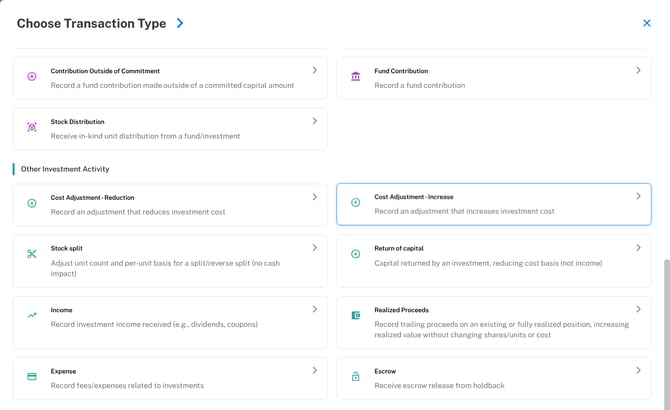
Both tiles are under Other Investment Activity in the Choose Transaction Type panel.
Step-by-Step: Record a Cost Adjustment - Increase
- Navigate to Portfolio Investments → Investment Transactions.
- Click Add New → New Investment Transaction.
- Under Other Investment Activity, select Cost Adjustment - Increase.
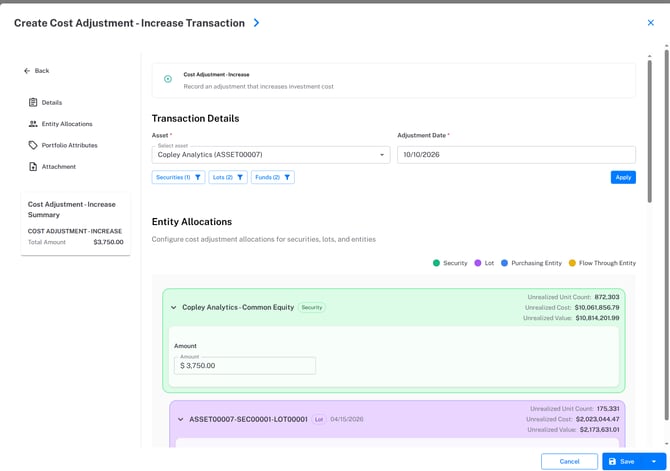
- Select the Asset and enter the Adjustment Date.
- Use the Securities, Lots, and Funds filters to choose the lot, then click Apply.
- In Entity Allocations, enter the Amount as a positive number on the Security row (or on individual lots).
- Review the Cost Adjustment - Increase Summary. Total Amount is the sum of every Amount you entered.
- Click Save. If the fund has a ledger, you can click Save & Send to GL instead to also review and create the Journal Entry.
Example
A lot holds 1,000 units at a cost of $25,000 and a value of $25,000. Record a Cost Adjustment - Increase of $3,750:
- Cost: $25,000 + $3,750 = $28,750
- Value: $25,000 + $3,750 = $28,750
- Units: 1,000 (unchanged)
- Unrealized gain or loss: unchanged
Step-by-Step: Record a Cost Adjustment - Reduction
- Navigate to Portfolio Investments → Investment Transactions.
- Click Add New → New Investment Transaction.
- Under Other Investment Activity, select Cost Adjustment - Reduction.
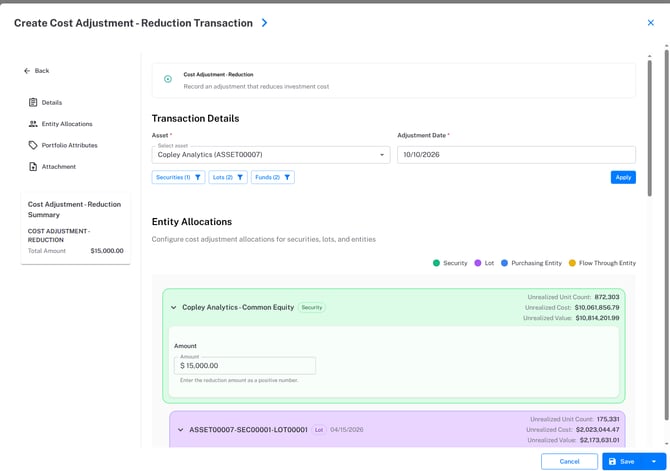
- Select the Asset and enter the Adjustment Date.
- Use the Securities, Lots, and Funds filters to choose the lot, then click Apply.
- In Entity Allocations, enter the Amount. As the form notes, enter the reduction amount as a positive number. For example, enter 15,000, not -15,000.
- Review the Cost Adjustment - Reduction Summary and its Total Amount.
- Click Save. If the fund has a ledger, you can click Save & Send to GL instead to also review and create the Journal Entry.
Example
A lot holds 600 units at a cost of $60,000 and a value of $60,000. Record a Cost Adjustment - Reduction of $15,000:
- Cost: $60,000 - $15,000 = $45,000
- Value: $60,000 - $15,000 = $45,000
- Units: 600 (unchanged)
- Unrealized gain or loss: unchanged
How Cost Adjustments Affect IRR
A Cost Adjustment counts as money put in (Increase) or returned (Reduction) on the adjustment date. It isn't moved back to the original purchase date. The asset's value moves by the same amount, so a Cost Adjustment doesn't create a gain or loss by itself. If the position is later sold, the adjustment carries into Realized IRR on its own date.
Example
- You buy for $10,000 on 01/15/2026, record a Cost Adjustment - Increase of $1,000 on 07/15/2026, and sell for $13,000 on 09/30/2026. Realized cost is $11,000, gain $2,000, Realized IRR 28.59%.
- With a Cost Adjustment - Reduction of $1,000 instead, realized cost is $9,000, gain $4,000, Realized IRR 62.73%.
Uploading and Exporting Cost Adjustments
Cost Adjustments are loaded with the Non-Purchase Template from the Add New menu on Investment Transactions. Enter the Transaction Type exactly as it appears in the application (Cost Adjustment - Increase or Cost Adjustment - Reduction), the source Lot Id, the Transaction Date, and a positive Amount.
| Field | Requirement |
|---|---|
| Transaction Type | Cost Adjustment - Increase or Cost Adjustment - Reduction |
| Date | MM/DD/YYYY |
| Amount | Currency, positive. Example: 15000 lowers cost by $15,000 on a Reduction. |
Applies To: Equity - Unit Based, Equity - Interest Based, Debt, Equity - Commitment Based
Example Non-Purchase Template rows (columns not shown are left blank):
| Transaction Type | Lot Id | Transaction Date | Amount |
|---|---|---|---|
| Cost Adjustment - Increase | ASSET00001-SEC00001-LOT00001 | 10/10/2026 | 3750.00 |
| Cost Adjustment - Reduction | ASSET00002-SEC00001-LOT00001 | 10/10/2026 | 15000.00 |
To export Cost Adjustments in upload format, open the Actions dropdown on Investment Transactions and select Export for Upload. Each Cost Adjustment row includes its Transaction Type, Lot Id, Transaction Date, and Amount. The file holds Purchase and Non-Purchase rows together, so before re-uploading, move Purchase rows into the Purchase Template and all other rows into the Non-Purchase Template.
For upload validation, Upload History, and rollback, see Uploading Non-Purchase Transactions.
Viewing Cost Adjustments on the SOI and in arkGL
Schedule of Investments
- On an SOI dated on or after the adjustment date, the lot's cost and value both include the adjustment. In the Increase example, the SOI shows cost $28,750 and value $28,750.
- An SOI dated before the adjustment date still shows the original cost ($25,000 in the example).
- Units do not change.
arkGL
Save & Send to GL appears only when the fund has a ledger. It creates one draft Journal Entry for each entity with a ledger, with 2 lines: the investment cost account (for example, Direct Investment Cost) and Cash.
- Cost Adjustment - Increase: debit Direct Investment Cost, credit Cash.
- Cost Adjustment - Reduction: debit Cash, credit Direct Investment Cost.
In the Increase example, Direct Investment Cost is debited $3,750 and Cash is credited $3,750. Review the proposed Journal Entry and its accounts before clicking Create Journal Entries.
Best Practices
- Use a Cost Adjustment, not an edit, when the original transaction is in a period you have already reported.
- Always enter a positive Amount. Choose Increase or Reduction to set the direction.
- Date the adjustment in the period when the change was identified.
- Amounts can include commas and cents, for example 1,234.56. If the Amount is blank or 0, Ark shows "Either Amount or Non-Cash Amount is required."
- A Cost Adjustment can't be dated before the lot's purchase date.
- Once later activity is recorded on the lot, an earlier Cost Adjustment is locked and Ark shows "downstream investment activity exists."
- You also can't backdate a new Cost Adjustment before a later transaction on the same lot. Ark shows: "A later transaction already exists for one of the selected lots. Change the sale date and try again."
Next Steps
After recording a Cost Adjustment, users typically proceed to:
- Review all investment activity in Portfolio Investments: Managing Investment Transactions
- Upload Cost Adjustments in bulk with Uploading Non-Purchase Transactions
- Review the updated cost on the Schedule of Investments (SOI)