
Jump to a Section
- What You'll Learn
- Who Can Use This Feature
- Before You Begin
- Step-by-Step: Send an Investment Transaction to GL
- Step-by-Step: Bulk Send Investment Transactions to GL
- Step-by-Step: Send Portfolio Valuations to GL
- Reviewing and Editing Proposed Journal Entries
- Editing Investment Transactions After Sending to GL
- Important Notes
- FAQ
- Next Steps
What You'll Learn
By the end of this guide, you'll be able to:
- Send Investment Transactions to arkGL directly from the transaction workflow
- Bulk send multiple Investment Transactions to General Ledger
- Send Portfolio Valuations to General Ledger while booking valuations
- Review and modify proposed Journal Entries before creating them
- Understand how Journal Entries are updated when Investment Transactions change
Who Can Use This Feature
Users with permission to create Investment Transactions and access arkGL can send Investment Transactions and Portfolio Valuations to General Ledger.
Depending on your organization's permissions, this may include:
- Ark Client Admins: Can send Investment Transactions and Portfolio Valuations to arkGL for funds they have access to.
- Basic Admins: Can send Investment Transactions and Portfolio Valuations to arkGL for funds they have access to through Fund Management Teams.
Note: Your organization must be licensed for arkGL and have at least one General Ledger configured for the applicable fund.
Before You Begin
Before Investment Transactions or Portfolio Valuations can be sent to General Ledger, make sure:
- arkGL has been enabled for your organization.
- At least one General Ledger has been created.
- The fund associated with the Investment Transaction or Valuation has been assigned to a General Ledger.
- Appropriate Chart of Account mappings have been configured.
If a fund does not have an associated General Ledger, the transaction cannot be sent to arkGL.
Step-by-Step: Send an Investment Transaction to GL
Investment Transactions can be sent to General Ledger during both creation and editing.
- Navigate to Portfolio Investments > Investment Transactions.
- Create a new Investment Transaction or open an existing transaction.
- Complete or update the transaction details.
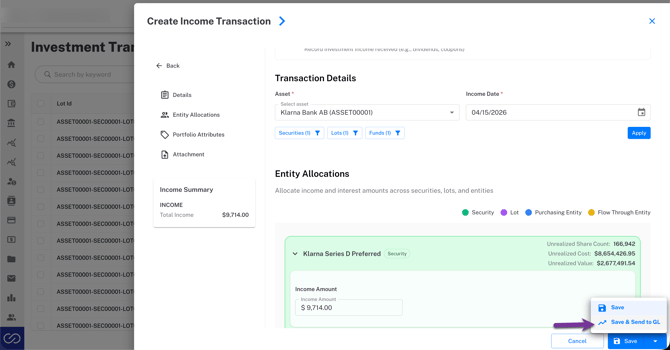
- Select the Save dropdown.
- Click Save & Send to GL.
- Review the proposed Journal Entry.
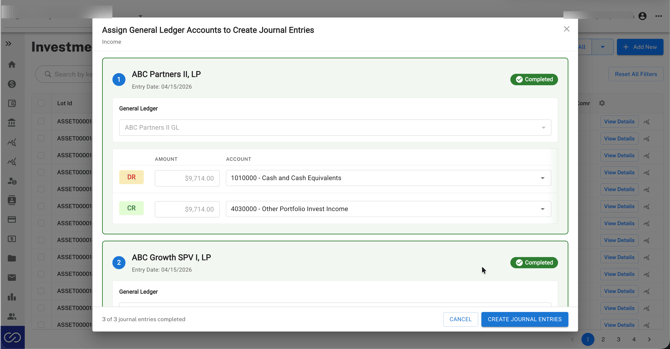
- Make any necessary changes to the Journal Entry.
- Click Create Journal Entries.
The Investment Transaction is saved and the corresponding draft Journal Entry (or Journal Entries) is created in arkGL.
Note: Save & Send to GL is only available when creating a new Investment Transaction or after making changes to an existing one. If you want to send an existing transaction to General Ledger without making any edits, return to the Investment Transactions page, select the transaction using the checkbox, and choose Send to GL from the Actions menu.
Step-by-Step: Bulk Send Investment Transactions to GL
Users can also send multiple Investment Transactions to General Ledger simultaneously.
- Navigate to Portfolio Investments > Investment Transactions.
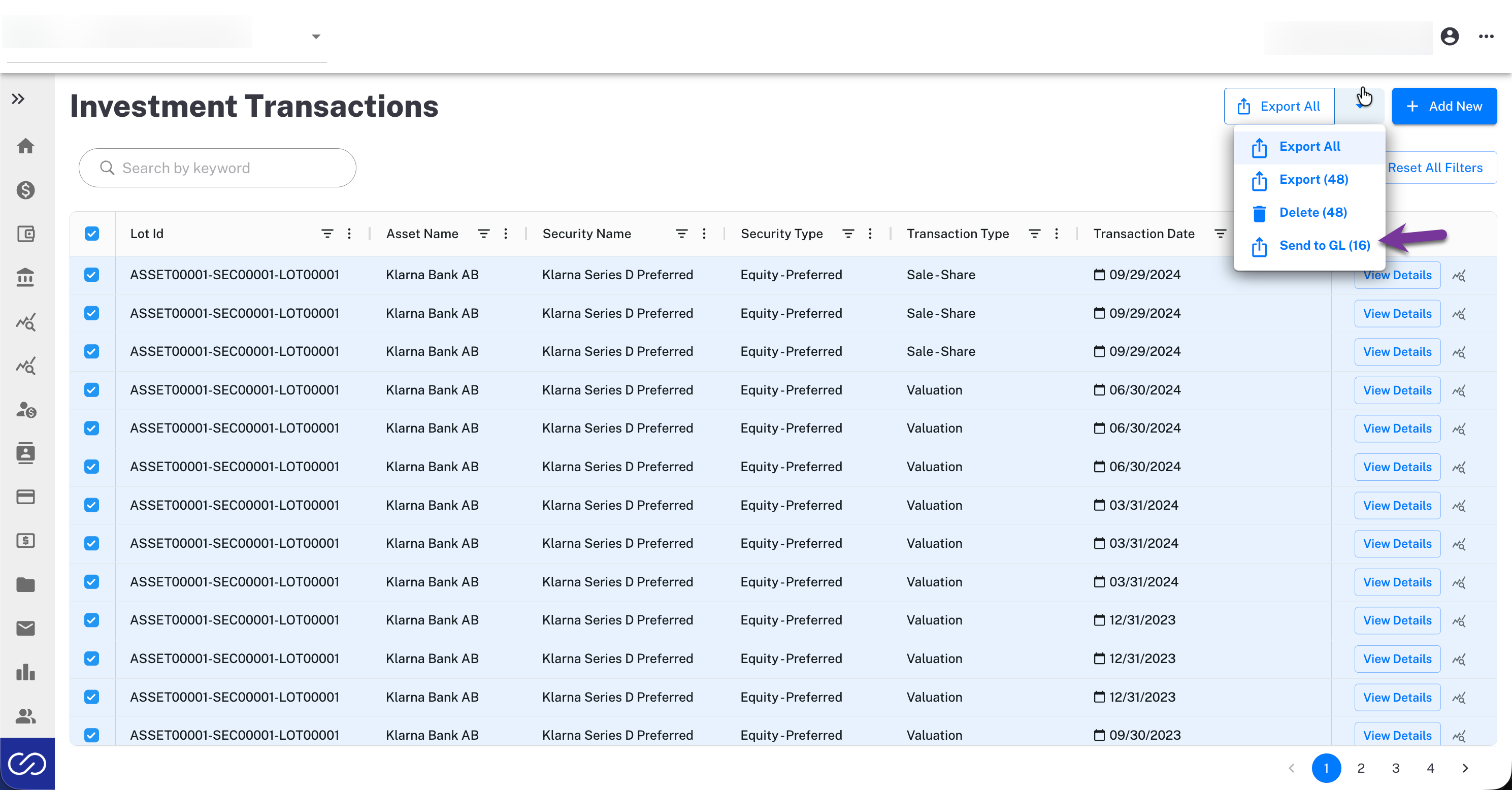
- Select one or more transactions using the checkboxes.
- Open the Actions dropdown.
- Select Send to GL (n).
- Review each proposed Journal Entry in the Entry Queue.
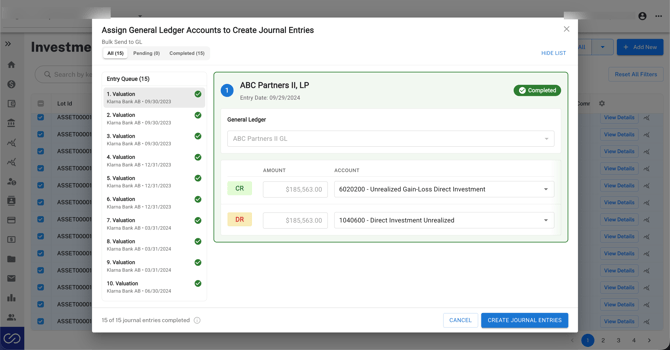
- Make any desired changes.
- Click Create Journal Entries.
The Entry Queue allows you to move between transactions while reviewing all proposed Journal Entries before they are created.
Step-by-Step: Send Portfolio Valuations to GL
Portfolio Valuations can be sent directly to General Ledger during the valuation booking process.
- Navigate to Portfolio Investments > Portfolio Valuations.
- Enter or update valuation amounts.
- Select the Save dropdown.
- Click Save & Send to GL.
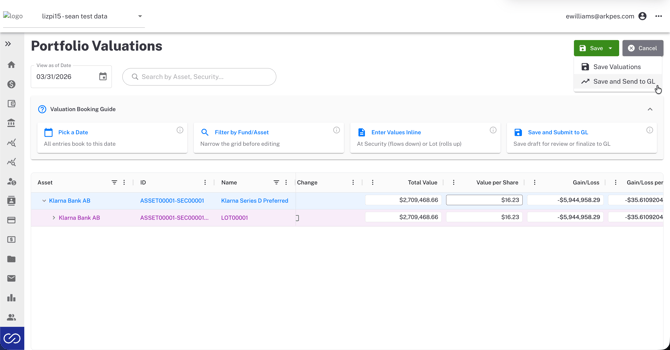
- Review the proposed Journal Entries.
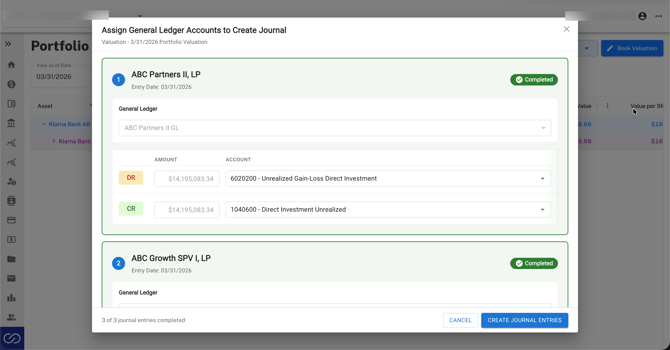
- Make any desired changes.
- Click Create Journal Entries.
The valuation is saved and draft Journal Entries are created for each applicable entity.
Reviewing and Editing Proposed Journal Entries
Before Journal Entries are created, ark displays a review screen showing every proposed Journal Entry.
From this screen you can:
- Review each Journal Entry before creation.
- Review the selected General Ledger. If multiple General Ledgers are available for the fund, choose the appropriate General Ledger.
- Review and modify the General Ledger account selections as needed. When possible, ark automatically populates the appropriate accounts based on ark's Basic Chart of Accounts, Advanced Chart of Accounts, or your organization's Chart of Account names that exactly match ark's standard account names.
- Review debit and credit amounts.
- Navigate between multiple Journal Entries using the Entry Queue.
- Confirm all Journal Entries before creating them.
Once complete, select Create Journal Entries to save the Journal Entries as drafts in arkGL.
Editing Investment Transactions After Sending to GL
Investment Transactions and Journal Entries remain linked after creation, but how ark handles updates depends on the status of the existing Journal Entry.
If the linked Journal Entry is still in Draft
When an Investment Transaction is edited:
- The existing draft Journal Entry is automatically updated to reflect the latest transaction values.
No additional Journal Entry is created.
If the linked Journal Entry has already been Posted
Posted Journal Entries cannot be modified.
When an Investment Transaction is edited:
- Ark automatically creates a reversing Journal Entry for the original posted Journal Entry.
- Ark creates a new Journal Entry reflecting the updated Investment Transaction.
This preserves the accounting audit trail while ensuring the General Ledger reflects the latest transaction information.
Important Notes
Keep the following in mind when working with Investment Transactions and General Ledger:
- Funds must be associated with a configured General Ledger before transactions can be sent to arkGL.
- Investment Transactions can generate one or multiple Journal Entries depending on entity allocations.
- Journal Entries are reviewed before they are created.
- Journal Entries are initially created as Drafts.
- Draft Journal Entries can be modified before posting.
- Posted Journal Entries cannot be edited and will instead be reversed and recreated if the linked Investment Transaction changes.
- Changes made directly to a Journal Entry do not automatically update the associated Investment Transaction. This allows accounting users flexibility to make Journal Entry adjustments without changing the original investment record.
FAQ
Q: Can I send multiple Investment Transactions to General Ledger at once?
A: Yes. Select one or more transactions using the checkboxes and choose Send to GL from the Actions menu.
Q: Can I edit the proposed Journal Entries before they are created?
A: Yes. The Journal Entry review screen allows you to modify General Ledger account selections before creating the Journal Entries.
Q: What happens if I edit an Investment Transaction after sending it to GL?
A: If the linked Journal Entry is still a draft, ark updates it automatically. If it has already been posted, ark creates a reversing Journal Entry and a new Journal Entry with the updated information.
Q: Will changing a Journal Entry update my Investment Transaction?
A: No. Changes made directly to Journal Entries do not update the associated Investment Transaction.
Q: Why can't I send my Investment Transaction to General Ledger?
A: Verify that:
- arkGL is enabled for your organization.
- The fund is associated with a configured General Ledger.
- Accounts are created in your General Ledger's Chart of Accounts.
- You have permission to create Journal Entries.
Q: Can Portfolio Valuations also be sent to General Ledger?
A: Yes. Use Save & Send to GL while booking Portfolio Valuations to generate the corresponding Journal Entries.
Next Steps
- Learn how to configure General Ledgers
- Learn how to configure your Chart of Accounts
- Review the Journal Entries guide
- Learn more about Portfolio Investment Transactions
- Contact support@arkpes.com if you need assistance configuring arkGL or troubleshooting Journal Entry creation.