
Learn how to securely log in to ark’s Admin and LP portals, set up and manage MFA, and support users with access-related actions.
Jump to a Section
What You’ll Learn
How to access ark's Admin and LP portals, set up Multi-Factor Authentication (MFA), reset a user's MFA when they lose access to their device, and support users with login and authentication actions.
Who Can Use This Feature
Admin users and LP portal users.
Step-by-Step: Logging In to ark
-
Navigate to your login URL:
-
LP Portals: Use the assigned client portal URL in the format
____.arkpes.com. -
Admin Portal: Go to https://platform.arkpes.com/ to access all client portals.
-
-
Choose an authentication method:
-
Biometrics (e.g., fingerprint or facial recognition)
-
Biometrics can be used for either your password or your MFA step, but not both during the same login session.
-
Biometric setup is a relationship between your browser and ark’s authentication provider. If you select “No” when prompted, your browser will remember this choice. To reset and enable biometrics later, clear your browsing history/data and try again.
-
-
Password
-
Social Login (e.g., Google or Microsoft)
-
-
Complete the MFA process to access the platform.
Lost or replaced your MFA device? If you can no longer use any of your registered MFA devices, contact your client team or support@arkpes.com. An Admin can reset your MFA. After the reset you'll receive an email inviting you to set up MFA again, and your previous MFA devices will no longer work.
Step-by-Step: Setting Up & Managing MFA
On first login, users will be prompted to set up their MFA device. They must choose one of the following options:
-
A phone number for SMS/Voice MFA
-
Authenticator App (e.g., Google Authenticator)
If users have already logged in with MFA before, they cannot change their MFA option during login. Instead, they must manage devices via the Manage MFA Devices page in ark.
Managing MFA Devices
-
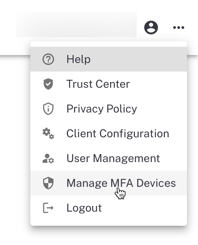
From your profile menu, click the three dots in the top right corner of the screen and select Manage MFA Devices.
-
You’ll be prompted to authenticate again before making any changes.
-
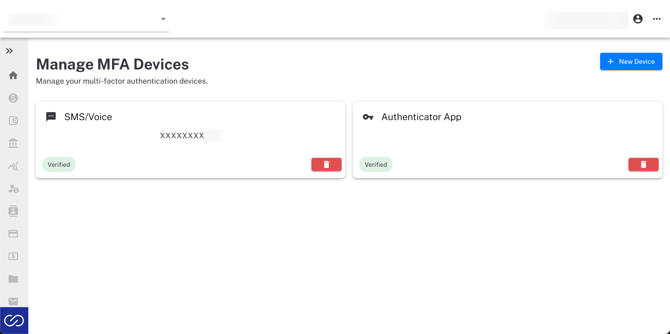
From here, you can:
-
Add new devices: register a phone number for SMS/Voice MFA, or set up a preferred authenticator app.
-
Delete devices: remove old or unused MFA devices.
-
Additional Features:
-
Remember this device for 30 days: Minimizes MFA prompts on the same device/browser.
-
Adaptive MFA: Recognizes trusted devices to streamline login while maintaining security.
Step-by-Step: Resetting a User's MFA
When a user loses access to every MFA device they've registered — a new phone, a wiped authenticator app, or a deleted phone number — an Admin can reset their MFA. The reset removes all of the user's registered MFA devices and sends them an email invitation to enroll again.
Who can reset MFA: Ark Client Admin users.
When Reset MFA is available: the user must have logged in to ark at least once, and contacts must be in Active or Pending status. A contact in Pending status is an existing user whose record has an edit awaiting approval — they still have an active MFA enrollment, so the reset applies to them. Reset MFA is not available for contacts in New or Inactive status. If the user has never logged in, Reset MFA appears greyed out — hover over it to see why. In that case send a new activation email instead, using Send Activation in the same menu, or have the user complete the password reset workflow.
Before resetting MFA: Verify the user's request. An MFA reset removes all MFA methods currently registered to the user's account. Before performing a reset, verify that the request is legitimate and that the person requesting the reset is authorized to access the account.
Do not proceed with the MFA reset until verification is complete. Please view this for additional guidance around verification.
Reset MFA for a contact (LP user)
- Go to the Contacts page.
- Locate the contact and open the actions menu (the arrow next to Impersonate User) on their row.
- Select Reset MFA — proceed only after verifying the MFA reset request.
- In the confirmation window, review the impact, select the acknowledgement checkbox, and type the confirmation phrase shown on the screen.
- Click Reset MFA. A confirmation message appears when the reset is complete.
Reset MFA for an admin user
- Click the three dots next to your email in the top-right corner and select User Management.
- Click View next to the admin user to open their record.
- Select Reset MFA.
- Complete the same confirmation step: acknowledgement checkbox plus the typed confirmation phrase.
- Click Reset MFA. A confirmation message appears when the reset is complete.
What the user experiences after a reset
- All previously registered MFA devices (SMS/Voice numbers and authenticator apps) are removed.
- The user receives an email from ark inviting them to set up MFA again. The link is single-use and is active for 5 days.
- If the link expires or is already used, the user can simply sign in to the portal — they'll be prompted to set up MFA during login, exactly as they were on first login.
- The user's password is unchanged. An MFA reset is not a password reset.
- Every MFA reset is recorded in ark's audit trail, including who performed it and when.
Step-by-Step: Managing Access
Resend Activation Links
If a user’s activation link has expired (after 21 days):
-
The user should contact their client team or support@arkpes.com.
Admin steps to resend an activation link:
-
Go to the Contacts page.
-
Locate the user.
-
Use the action menu to resend the activation email.
Note: If a contact received a welcome email before migration but never accepted it, they must go through the password reset workflow to set up their account (if they don’t already have any Ark account set up).
Unlock Contacts
If a user is locked out after five failed login attempts:
-
They should contact their client team or support@arkpes.com.
Admin steps to unlock contacts:
-
Navigate to the Contacts page.
-
Click Unlock next to the user’s name.
Assist with Password Reset
If a user isn’t receiving a password reset email:
Check the following:
-
Is the contact locked out?
-
Are they using the correct portal domain?
-
Are they using the correct email address?
-
Is the email in the junk/spam folder?
Admin tips:
-
Password reset emails come from
no-reply@arkpes.comorno-reply@mvpadmintech.com, depending on the domain. - A password reset applies across all logins tied to that email address. If the user accesses multiple portals with the same email, resetting the password will update it for all of them.
Tips & Best Practices
-
Keep contact information updated to avoid login issues.
-
Use the "Remember this device" option on trusted devices.
-
Address access issues early by contacting support.
- Confirm the password meets the below requirements:
- At least 8 characters
- At least 3 of the following:
- Lower case letters (a–z)
- Upper case letters (A–Z)
- Numbers (0–9)
- Special characters (e.g. !@#$%^&*)
- Remember: A single password reset applies to all portals tied to your email.
- Reset MFA only after confirming the identity of the person requesting it — the reset removes every MFA device on the account.
- If Reset MFA is greyed out, the user hasn't logged in yet, or the contact is New or Inactive. Use Send Activation, or the password reset workflow, to get them into the portal first.
- A user who simply wants to switch methods does not need a reset. They can add or remove devices themselves from Manage MFA Devices.
FAQ
LP User FAQs
-
Can I switch MFA methods?
Yes, you can switch methods by going to Manage MFA Devices in your user settings. To find this option, click the profile menu (three dots in the top right corner of the screen) and select Manage MFA Devices. -
I’m locked out. What do I do?
Contact your client team or support@arkpes.com to request an unlock. -
My activation link expired. Now what?
Request a new one by contacting your client team or support@arkpes.com. -
Can I change my biometrics choice if I said "No" the first time?
Yes, but you’ll need to clear your browser history/data to reset your biometric setup preference.
Admin User FAQs
-
Can I resend a user’s activation link?
Yes. Go to the Contacts page, locate the user, and use the action menu to resend the activation email. -
How do I unlock a user who is locked out?
Navigate to the Contacts page and click Unlock next to the user’s name. -
A user says they didn’t get the password reset email. What should I check?
-
Is the contact locked out?
-
Are they using the correct portal domain?
-
Are they using the correct email address?
-
Is the email in their spam/junk folder?
Note: Password reset emails come from no-reply@arkpes.com or no-reply@mvpadmintech.com, depending on the domain.
-
-
What if a user received a pre-migration welcome email but never set up their account?
They’ll need to use the password reset workflow to create their account.
Next Steps
- If you're an Admin, explore additional guides on How to Manage Admin Users and Fund Access in ark and How to Add, Manage, and Impersonate Contacts in ark
- For further help, contact support@arkpes.com.