
This guide walks you through tracking Capital Call payments manually on the Cash Receipts page when you are not using bank integrations. You’ll learn how to record payments, notify investors, and generate draft journal entries for the GL.
Jump to a Section
What You’ll Learn
By the end of this guide, you’ll be able to:
-
Track capital call payments manually using the Cash Receipts page
-
Tag payments with investor and capital call details
-
Generate draft investor notifications
-
Create journal entries for received capital
-
Mark a Capital Call as fully received to clean up the Bank Feeds dropdown
Who Can Use This Feature
This feature is available to:
-
Ark Client Admin users
-
Basic Admin users with appropriate fund access
- Fund User Admins with appropriate fund access (read only)
Note: arkGL is available only on the full version of the Ark platform. Contact sales@arkpes.com or your fund administrator if it’s not yet enabled.
Before You Begin
Make sure the following is true:
-
The relevant investor contact(s) are permissioned for Capital Calls
-
The payment information is known from outside banking sources
-
The arkGL is enabled if you plan to generate a journal entry
Step-by-Step: Tracking Payments and Sending Notifications
- Go to the Cash Receipts Page
- Navigate to Banks > Cash Receipts from the side navigation.
- Select a Capital Call
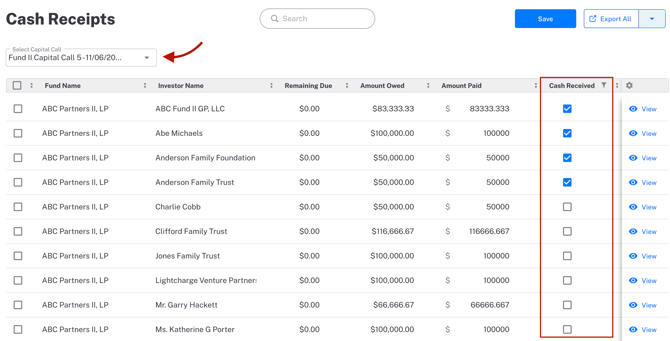
- Use the dropdown to select a published Capital Call. Transactions for tagged investors will appear.
- Enter Payment Information
-
In-line Editing:
-
Locate the investor’s Capital Call line
-
Enter Amount Received and Date Received
-
Check the Cash Received box
-
Click Save
-
-
View Button:
-
Click View to open the detail view
-
Enter Amount Received, Date Received, and optional adjustments (up to two partial payments)
-
Check the Cash Received box and click Save
-
-
- Notify Investors and Send to GL
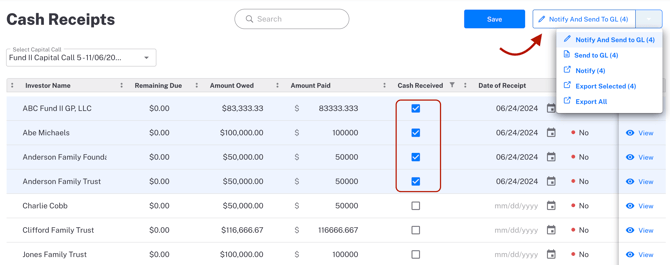
- Use checkboxes to select one or more investor payments
- From the action dropdown:
- Click Notify to draft investor emails
- Click Send to GL to create draft journal entries
- Click Notify and Send to GL to do both actions at once
What Happens Next:
-
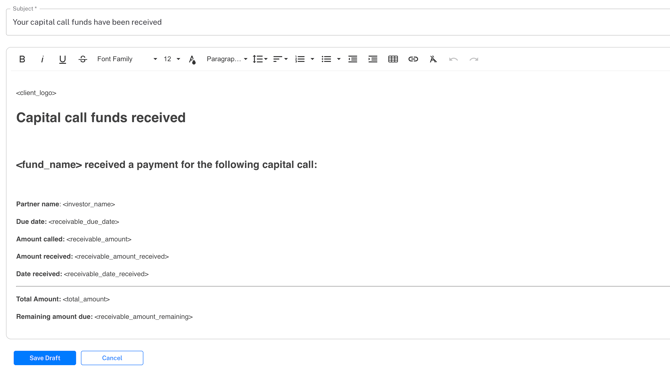
ark generates a draft notification in Mailings > General Mailings with pre-filled payment and balance details
-
A journal entry is created with memo tagging to the investor and pre-filled debit and credit lines
-
The entry will be in Draft status and must be posted manually in General Ledger > Journal Entries
Summary Boxes
At the top of the Cash Receipts page, you’ll see:
-
Total Capital Called: The full amount requested from investors
-
Total Amount Paid: Sum of received payments
-
Total Remaining Due: The difference between Capital Called and Amount Paid, excluding overpayments
Marking a Capital Call as Fully Received
To remove a Capital Call from showing in Bank Feeds:
-
Select the Capital Call in Cash Receipts
-
Ensure all payments have been entered
-
Check the Fully Received box
-
This hides it from the Capital Call Received dropdown in Bank Feeds, preventing further linking
FAQ
Q: What fields are required to send to the GL?
A: Investor, amount, date received, and memo tagging must be entered.
Q: Can I edit the notification before sending it to investors?
A: Yes. Go to Mailings > General Mailings to review and edit the draft.
Q: How do I know which contacts receive the email?
A: ark uses the Capital Call batch to determine recipients. Only contacts permissioned for the selected fund/investor pair will be included.
Best Practices
-
Confirm investor tagging and GL accounts before submitting to the GL
-
Review mailings before sending investor notifications
-
Use the Fully Received checkbox to clean up dropdowns in Bank Feeds
Next Steps
-
View journal entries in General Ledger > Journal Entries
-
Review or edit investor notifications in Mailings > General Mailings
- Learn how to send Capital Call Reminder Emails
For help, contact support@arkpes.com