---
title: Sending General Mailings to Investor Contacts
description: Learn how to send general notifications and updates to investor contacts in ark using the General Mailings tool. This guide covers audience selection, email customization, and delivery best practices.
---
[Skip to content](https://connect.arkpes.com/knowledge/sending-general-mailings-to-investor-contacts#main-content)
English - United States
Show submenu for translations
[Submit a Ticket](https://connect.arkpes.com/knowledge/kb-tickets/new?hsLang=en-us) [My Tickets](https://connect.arkpes.com/tickets?hsLang=en-us)
[](https://connect.arkpes.com/knowledge?hsLang=en-us)
Open main navigation
Close main navigation
- English - United States
Show submenu for translations
- [Submit a Ticket](https://connect.arkpes.com/knowledge/kb-tickets/new)
- [My Tickets](https://connect.arkpes.com/tickets)
- [Email Ark Support](mailto:support@arkpes.com)
[Email Ark Support](mailto:support@arkpes.com)
Search the knowledge base
- There are no suggestions because the search field is empty.
1. [Ark Knowledge Center](https://connect.arkpes.com/knowledge?hsLang=en-us)
2. [Investor Communications](https://connect.arkpes.com/knowledge/investor-communications?hsLang=en-us)
3. [General Mailings](https://connect.arkpes.com/knowledge/investor-communications?hsLang=en-us#general-mailings)
# Sending General Mailings to Investor Contacts
This guide walks you through using the General Mailings tool in ark to send non-document communications - such as annual meeting invites, fund updates, or investor memos - to permissioned investor contacts.
---
#### **Jump to a Section**
- [What You’ll Learn](https://connect.arkpes.com/knowledge/sending-general-mailings-to-investor-contacts#what)
- [Who Can Use This Feature](https://connect.arkpes.com/knowledge/sending-general-mailings-to-investor-contacts#who)
- [Overview: Recipient Targeting](https://connect.arkpes.com/knowledge/sending-general-mailings-to-investor-contacts#overview)
- [Step-by-Step: Drafting and Sending a General Mailing](https://connect.arkpes.com/knowledge/sending-general-mailings-to-investor-contacts#step1)
- [Merge Fields & Content Tips](https://connect.arkpes.com/knowledge/sending-general-mailings-to-investor-contacts#merge)
- [Best Practices](https://connect.arkpes.com/knowledge/sending-general-mailings-to-investor-contacts#best)
- [FAQ](https://connect.arkpes.com/knowledge/sending-general-mailings-to-investor-contacts#faq)
- [Next Steps](https://connect.arkpes.com/knowledge/sending-general-mailings-to-investor-contacts#next)
---
#### **What You’ll Learn**
By the end of this guide, you’ll be able to:
- Select recipients based on fund, investor, and contact roles
- Draft personalized emails using merge fields
- Preview and send non-document emails to multiple investor contacts
---
#### **Who Can Use This Feature**
This feature is available to:
- Ark Client Admin users
- Basic Admin users with fund access
---
#### **Overview: Recipient Targeting**
The General Mailings tool uses fund-investor relationships and contact roles to define email recipients. Here's how it works:
- A **unique email is generated per investor**.
- Contacts in the selected contact role (e.g., Annual Meeting, K1) are included in the "To:" field.
- If an investor has no contacts with the selected role, no email will be sent for that investor.
- Contacts with the correct role and fund association cannot be manually removed from the batch.
**Example:**
Investor A has three contacts:
- Contact 1 & 2 are permissioned for the Annual Meeting role.
- Contact 3 is permissioned for K1 only.
If you send a mailing to the "Annual Meeting" role, Contacts 1 & 2 will receive a single email together, and Contact 3 will be excluded.
---
#### **Step-by-Step: Drafting and Sending a General Mailing**
1. **Navigate to Mailings \> General Mailings** in the Admin Portal.
2. Click **+ Start New Mailing**.
3. **Select Recipients: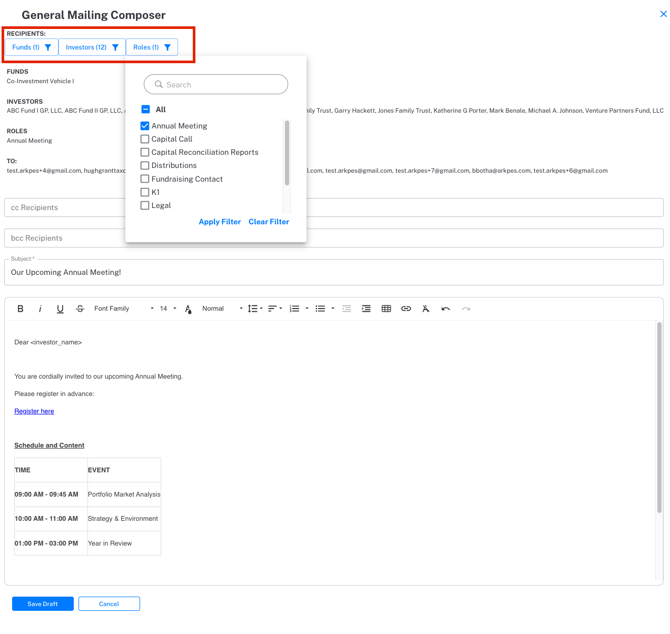**
- Choose one or more **Funds**.
- Choose the **Investors** you want to include.
- Choose the **Contact Role** (e.g., Annual Meeting).
4. **Compose Your Email:**
- Add a subject line.
- Write your message using available merge fields.
- (Optional) Add a logo (max 100KB).
- Add CC or BCC email addresses as needed.
5. Click **Save Draft** to generate previews.
6. **Review Emails:**
- Click **Preview** to view individual emails.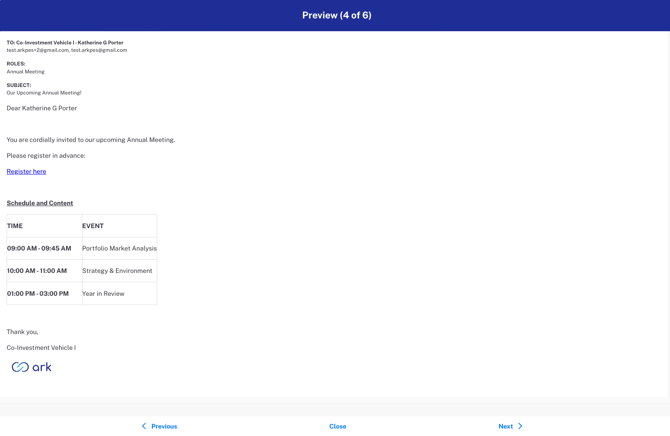
- Use arrows to scroll through each investor email.
7. Click **Send** to deliver the mailing.
---
#### **Merge Fields & Content Tips**
Use merge fields to personalize emails. Insert them into the email body only:
- `` – Displays the investor's name
- `` – Displays the selected fund name
**Note:** No documents or links are attached. This is a general text-based communication.
---
#### **Best Practices**
- Only **Active** contacts will receive the email.
- Use CC or BCC fields to loop in external or internal recipients.
- Keep subject lines consistent across the batch.
- Test the email by including a test investor and confirming delivery.
---
#### **FAQ**
**Q: Can I preview emails before sending?**
Yes. Use the Preview button after saving the draft.
**Q: Can I send separate emails to each contact?**
No. A single email is generated per investor, including all eligible contacts.
**Q: Can I attach files to general notifications?**
No. Use this for text-only messages. For document mailings, refer to the Fund or Investor-Specific Document guide.
---
#### **Next Steps**
- Learn how to send document-based mailings in the [Sending Fund or Investor-Specific Documents with General Mailings](https://connect.arkpes.com/knowledge/sending-fund-or-investor-specific-documents-with-general-mailings?hsLang=en-us) guide.
- View the [Ark General Mailings](https://connect.arkpes.com/hubfs/Knowledge%20Base%20Files/Additional%20Knowledge%20Base%20Files/Ark%20General%20Mailings.pdf?hsLang=en-us) file
- Track delivery using **Reports \> Email Delivery Audit**.
- For help, contact **[support@arkpes.com](mailto:support@arkpes.com)** — we’re here to assist.
- [NEW Portfolio Investments](https://connect.arkpes.com/knowledge/new-portfolio-investments?hsLang=en-us#main-content)
- [Portfolio Investment Uploading Guides](https://connect.arkpes.com/knowledge/new-portfolio-investments?hsLang=en-us#portfolio-investment-uploading-guides)
- [Client Management](https://connect.arkpes.com/knowledge/client-management?hsLang=en-us#main-content)
- [Client Portal Setup](https://connect.arkpes.com/knowledge/client-management?hsLang=en-us#client-portal-setup)
- [Branding & Communication Settings](https://connect.arkpes.com/knowledge/client-management?hsLang=en-us#branding-communication-settings)
- [Transaction & Metric Mapping](https://connect.arkpes.com/knowledge/client-management?hsLang=en-us#transaction-metric-mapping)
- [Report Configuration](https://connect.arkpes.com/knowledge/client-management?hsLang=en-us#report-configuration)
- [Feature Configuration](https://connect.arkpes.com/knowledge/client-management?hsLang=en-us#feature-configuration)
- [Client Onboarding & Go-Live](https://connect.arkpes.com/knowledge/client-management?hsLang=en-us#client-onboarding-go-live)
- [Data & Transaction Management](https://connect.arkpes.com/knowledge/data-transaction-management?hsLang=en-us#main-content)
- [Transactions & Metrics](https://connect.arkpes.com/knowledge/data-transaction-management?hsLang=en-us#transactions-metrics)
- [Fund Allocations](https://connect.arkpes.com/knowledge/data-transaction-management?hsLang=en-us#fund-allocations)
- [Document Management](https://connect.arkpes.com/knowledge/document-management?hsLang=en-us)
- [Financial Management](https://connect.arkpes.com/knowledge/financial-management?hsLang=en-us#main-content)
- [General Ledger & Chart of Accounts](https://connect.arkpes.com/knowledge/financial-management?hsLang=en-us#general-ledger-chart-of-accounts)
- [Journal Entries & Entity Tagging](https://connect.arkpes.com/knowledge/financial-management?hsLang=en-us#journal-entries-entity-tagging)
- [Bank Integrations](https://connect.arkpes.com/knowledge/financial-management?hsLang=en-us#bank-integrations)
- [Cash Receipts](https://connect.arkpes.com/knowledge/financial-management?hsLang=en-us#cash-receipts)
- [GL Reports & Reporting Tools](https://connect.arkpes.com/knowledge/financial-management?hsLang=en-us#gl-reports-reporting-tools)
- [Fund & Investor Management](https://connect.arkpes.com/knowledge/fund-investor-management?hsLang=en-us)
- [Investor Communications](https://connect.arkpes.com/knowledge/investor-communications?hsLang=en-us#main-content)
- [Capital Calls & Distributions](https://connect.arkpes.com/knowledge/investor-communications?hsLang=en-us#capital-calls-distributions)
- [General Mailings](https://connect.arkpes.com/knowledge/investor-communications?hsLang=en-us#general-mailings)
- [Product Updates](https://connect.arkpes.com/knowledge/product-updates?hsLang=en-us#main-content)
- [Release Notes](https://connect.arkpes.com/knowledge/product-updates?hsLang=en-us#release-notes)
- [User & Access Management](https://connect.arkpes.com/knowledge/user-access-management?hsLang=en-us#main-content)
- [Admin Users & Teams](https://connect.arkpes.com/knowledge/user-access-management?hsLang=en-us#admin-users-teams)
- [Contacts & Impersonation](https://connect.arkpes.com/knowledge/user-access-management?hsLang=en-us#contacts-impersonation)
- [Authentication & Login](https://connect.arkpes.com/knowledge/user-access-management?hsLang=en-us#authentication-login)
- [Audit & Activity Reporting](https://connect.arkpes.com/knowledge/user-access-management?hsLang=en-us#audit-activity-reporting)
- [LP Portal](https://connect.arkpes.com/knowledge/lp-portal?hsLang=en-us)
[](http://arkpes.com)
[mailto:support@arkpes.com](mailto:support@arkpes.com)
Copyright © 2025, Ark PES