---
title: "Preparing Capital Calls & Distributions: Mailings Templates & Folder Setup"
description: Learn how to prepare the required templates and folder permissions for capital call and distribution mailings in ark, including notice and email templates, transaction uploads, and document repository setup.
---
[Skip to content](https://connect.arkpes.com/knowledge/preparing-capital-calls-distributions-mailings-templates-folder-setup#main-content)
English - United States
Show submenu for translations
[Submit a Ticket](https://connect.arkpes.com/knowledge/kb-tickets/new?hsLang=en-us) [My Tickets](https://connect.arkpes.com/tickets?hsLang=en-us)
[](https://connect.arkpes.com/knowledge?hsLang=en-us)
Open main navigation
Close main navigation
- English - United States
Show submenu for translations
- [Submit a Ticket](https://connect.arkpes.com/knowledge/kb-tickets/new)
- [My Tickets](https://connect.arkpes.com/tickets)
- [Email Ark Support](mailto:support@arkpes.com)
[Email Ark Support](mailto:support@arkpes.com)
Search the knowledge base
- There are no suggestions because the search field is empty.
1. [Ark Knowledge Center](https://connect.arkpes.com/knowledge?hsLang=en-us)
2. [Investor Communications](https://connect.arkpes.com/knowledge/investor-communications?hsLang=en-us)
3. [Capital Calls & Distributions](https://connect.arkpes.com/knowledge/investor-communications?hsLang=en-us#capital-calls-distributions)
# Preparing Capital Calls & Distributions: Mailings Templates & Folder Setup
This guide walks you through how to prepare the required templates and folder setup before launching a capital call or distribution mailing in ark.
---
#### **Jump to a Section**
- [What You’ll Learn](https://connect.arkpes.com/knowledge/preparing-capital-calls-distributions-mailings-templates-folder-setup#what)
- [Who Can Use This Feature](https://connect.arkpes.com/knowledge/preparing-capital-calls-distributions-mailings-templates-folder-setup#who)
- [Step-by-Step: Preparing the Mailings Templates](https://connect.arkpes.com/knowledge/preparing-capital-calls-distributions-mailings-templates-folder-setup#step1)
- [Step-by-Step: Setting Up Document Folders](https://connect.arkpes.com/knowledge/preparing-capital-calls-distributions-mailings-templates-folder-setup#step2)
- [Best Practices](https://connect.arkpes.com/knowledge/preparing-capital-calls-distributions-mailings-templates-folder-setup#best)
- [Next Steps](https://connect.arkpes.com/knowledge/preparing-capital-calls-distributions-mailings-templates-folder-setup#next)
---
#### **What You’ll Learn**
By the end of this guide, you’ll be able to:
- Prepare properly formatted templates for capital call and distribution mailings
- Create and permission document folders for capital call and distribution notices
- Understand merge fields and how to structure transaction files
---
#### **Who Can Use This Feature**
This feature is available to:
- Ark Client Admin users
- Basic Admin users with fund access
---
---
#### **Step-by-Step: Preparing the Mailings Templates**
You’ll need three components before initiating a mailing batch:
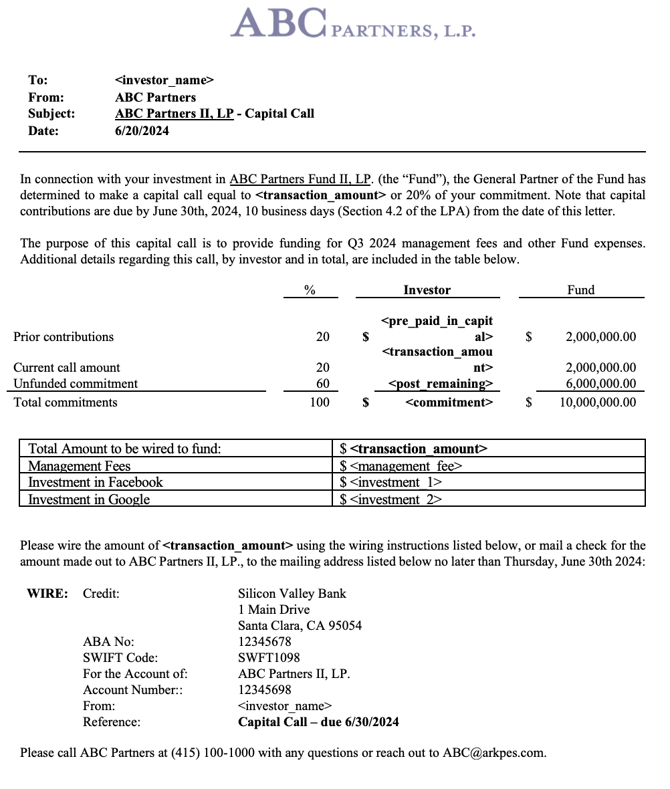
##### 1. **Notice Template (Word Document)**
Prepare a notice template with hardcoded language and supported merge fields.
###### Supported merge fields include:
- \
- \ - this is the total amount of paid in capital before considering the transaction that is currently being run.
- \ - this is the total amount of paid in capital after considering the transaction that is currently being run.
- \ - this is the total remaining commitment before considering the transaction that is currently being run.
- \ this is the total remaining commitment after considering the transaction that is currently being run.
- \
- \
- \
- \
- \
- \
- Additional merge fields can be created via your CSV upload and referenced as \
###### Example:
##### 2. **Email Body Template (Word Document)**
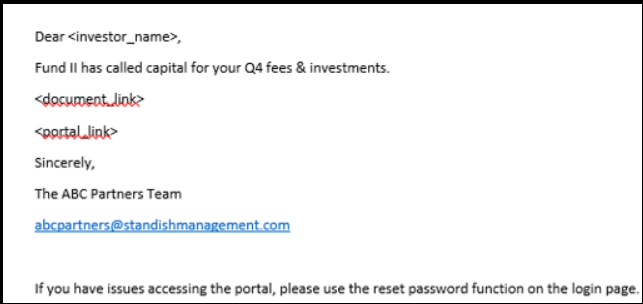
Prepare a plain Word document with email body content and any necessary merge fields.
###### Recommended tags:
- \ - this needs to be merged into the email language. Once users click this link and enter valid credentials, the document will automatically download to their device.
- \
###### Example:
##### 3. **Transaction Upload CSV**
This file contains the capital call or distribution transaction details.
###### Include required fields like:
- fund\_name
- investor\_name
- transaction\_amount
- transaction\_type
- transaction\_date
- transaction\_quarter
- is\_capital\_call (Y) or is\_distribution (Y)
You may also include custom columns (e.g., component breakdowns) as long as they are non-empty.
> **Note:** Remove the `uuid` column before uploading to avoid system errors.
###### Example:

---
#### **Step-by-Step: Setting Up Document Folders**
To ensure that generated notices are stored and permissioned correctly:
1. **Navigate to the Documents tab** in the Admin Portal.
2. **Create two folders**: one for Capital Calls and one for Distributions.
3. For each folder:
- Assign the appropriate contact role (`Capital Call`, `Capital Call CC`, `Distribution`, or `Distribution CC`).
- Confirm roles are permissioned under Teams \> Roles.
4. Use subfolders as needed, but ensure main folders are set correctly.
> Missing folders or misconfigured permissions will result in mailing setup errors.
---
#### **Best Practices**
- Always test your templates with a sample contact before sending.
- Use clear, descriptive filenames for templates (e.g., `Q2_2025_Distribution_Template.docx`).
- Validate your merge fields by previewing email content before sending.
- Store reusable templates in a centralized shared folder for your team.
---
#### **Next Steps**
- Proceed to [Capital Calls & Distributions: Initiating, Reviewing, and Publishing](https://connect.arkpes.com/knowledge/capital-calls-distributions-initiating-reviewing-and-publishing?hsLang=en-us) to run your mailing.
- Contact **support@arkpes.com** for help reviewing templates or folder setup.
- [NEW Portfolio Investments](https://connect.arkpes.com/knowledge/new-portfolio-investments?hsLang=en-us#main-content)
- [Portfolio Investment Uploading Guides](https://connect.arkpes.com/knowledge/new-portfolio-investments?hsLang=en-us#portfolio-investment-uploading-guides)
- [Client Management](https://connect.arkpes.com/knowledge/client-management?hsLang=en-us#main-content)
- [Client Portal Setup](https://connect.arkpes.com/knowledge/client-management?hsLang=en-us#client-portal-setup)
- [Branding & Communication Settings](https://connect.arkpes.com/knowledge/client-management?hsLang=en-us#branding-communication-settings)
- [Transaction & Metric Mapping](https://connect.arkpes.com/knowledge/client-management?hsLang=en-us#transaction-metric-mapping)
- [Report Configuration](https://connect.arkpes.com/knowledge/client-management?hsLang=en-us#report-configuration)
- [Feature Configuration](https://connect.arkpes.com/knowledge/client-management?hsLang=en-us#feature-configuration)
- [Client Onboarding & Go-Live](https://connect.arkpes.com/knowledge/client-management?hsLang=en-us#client-onboarding-go-live)
- [Data & Transaction Management](https://connect.arkpes.com/knowledge/data-transaction-management?hsLang=en-us#main-content)
- [Transactions & Metrics](https://connect.arkpes.com/knowledge/data-transaction-management?hsLang=en-us#transactions-metrics)
- [Fund Allocations](https://connect.arkpes.com/knowledge/data-transaction-management?hsLang=en-us#fund-allocations)
- [Document Management](https://connect.arkpes.com/knowledge/document-management?hsLang=en-us)
- [Financial Management](https://connect.arkpes.com/knowledge/financial-management?hsLang=en-us#main-content)
- [General Ledger & Chart of Accounts](https://connect.arkpes.com/knowledge/financial-management?hsLang=en-us#general-ledger-chart-of-accounts)
- [Journal Entries & Entity Tagging](https://connect.arkpes.com/knowledge/financial-management?hsLang=en-us#journal-entries-entity-tagging)
- [Bank Integrations](https://connect.arkpes.com/knowledge/financial-management?hsLang=en-us#bank-integrations)
- [Cash Receipts](https://connect.arkpes.com/knowledge/financial-management?hsLang=en-us#cash-receipts)
- [GL Reports & Reporting Tools](https://connect.arkpes.com/knowledge/financial-management?hsLang=en-us#gl-reports-reporting-tools)
- [Fund & Investor Management](https://connect.arkpes.com/knowledge/fund-investor-management?hsLang=en-us)
- [Investor Communications](https://connect.arkpes.com/knowledge/investor-communications?hsLang=en-us#main-content)
- [Capital Calls & Distributions](https://connect.arkpes.com/knowledge/investor-communications?hsLang=en-us#capital-calls-distributions)
- [General Mailings](https://connect.arkpes.com/knowledge/investor-communications?hsLang=en-us#general-mailings)
- [Product Updates](https://connect.arkpes.com/knowledge/product-updates?hsLang=en-us#main-content)
- [Release Notes](https://connect.arkpes.com/knowledge/product-updates?hsLang=en-us#release-notes)
- [User & Access Management](https://connect.arkpes.com/knowledge/user-access-management?hsLang=en-us#main-content)
- [Admin Users & Teams](https://connect.arkpes.com/knowledge/user-access-management?hsLang=en-us#admin-users-teams)
- [Contacts & Impersonation](https://connect.arkpes.com/knowledge/user-access-management?hsLang=en-us#contacts-impersonation)
- [Authentication & Login](https://connect.arkpes.com/knowledge/user-access-management?hsLang=en-us#authentication-login)
- [Audit & Activity Reporting](https://connect.arkpes.com/knowledge/user-access-management?hsLang=en-us#audit-activity-reporting)
- [LP Portal](https://connect.arkpes.com/knowledge/lp-portal?hsLang=en-us)
[](http://arkpes.com)
[mailto:support@arkpes.com](mailto:support@arkpes.com)
Copyright © 2025, Ark PES