
This guide walks you through using the Calculator Settings panel on the Add Transactions step to calculate each investor's capital call amount automatically, then reviewing, adjusting, and saving the results before notices are generated.
Jump to a Section
- What You’ll Learn
- Who Can Use This Feature
- Before You Begin
- Step-by-Step: Calculating Call Amounts
- Step-by-Step: Reviewing and Editing the Transactions Grid
- Step-by-Step: Saving Transactions
- Best Practices
- FAQ
- Next Steps
What You’ll Learn
By the end of this guide, you’ll be able to:
- Calculate pro-rata capital call amounts by total commitment or by unfunded commitment
- Apply calculated amounts to every investor in the fund in one step
- Review and adjust individual call amounts, transaction types, and dates in the grid
- Save transactions and continue to Review Documents
Who Can Use This Feature
This feature is available to:
- Ark Client Admin users
- Basic Admin users with fund access
Before You Begin
Make sure the following are in place before using the calculator. More details can be found in the Capital Calls & Distributions: Initiating, Reviewing, and Publishing guide.
- The capital call has been created on the Capital Call Setup step with a Fund, Reviewers, and Notice and Email Templates.
- The fund has investor commitments and published quarters in ark. The calculator uses these to work out each investor’s share.
- You are on a team that manages the fund.
Step-by-Step: Calculating Call Amounts
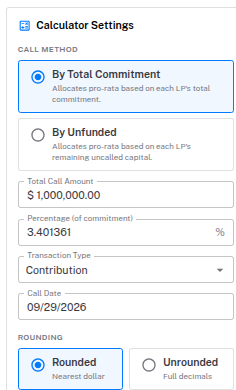
- Open the capital call and go to the Add Transactions tab. The Calculator Settings panel appears on the left.
- Choose a Call Method:
- By Total Commitment: Allocates pro-rata based on each LP’s total commitment.
- By Unfunded: Allocates pro-rata based on each LP’s remaining uncalled capital.
- Enter either a Total Call Amount or a Percentage. The other field updates automatically. If you switch methods, the dollar amount stays the same and the percentage is recalculated.
- Select the Transaction Type (for example, Contribution) and confirm the Call Date. The call date defaults to the capital call’s date.
- Choose a Rounding option:
- Rounded: Each investor’s amount is rounded to the nearest dollar.
- Unrounded: Amounts keep full decimals.
- Click Apply To Grid. Ark adds one row per investor with their calculated call amount.
Note: Applying the calculator fills the grid only. Nothing is saved until you click Save And Continue.
Note: Called to Date and Uncalled Capital currently include transactions from other capital calls for this fund that are still in Editing or Reviewing, not just calls that have been published. Before calculating By Unfunded, check whether the fund has other draft capital calls open.
Step-by-Step: Reviewing and Editing the Transactions Grid
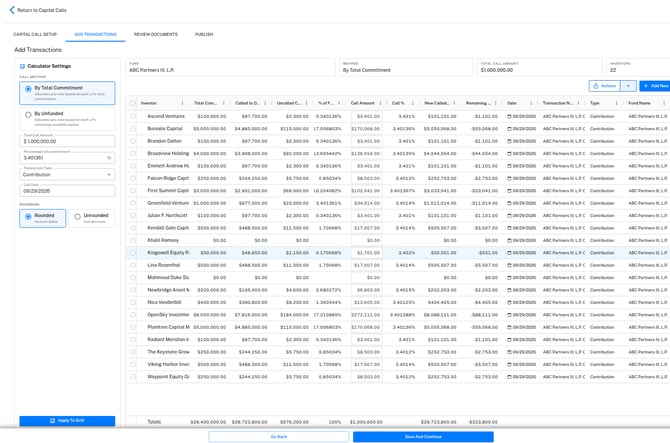
- Check the summary cards above the grid: Fund, Method, Total Call Amount, and Investors.
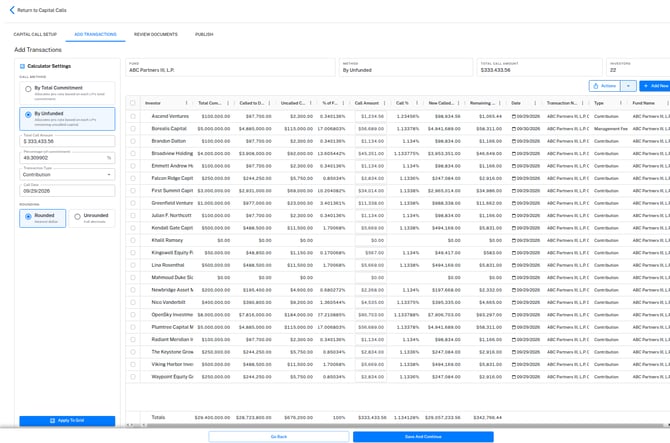
- Review each investor’s row. The grid shows Total Commitment, Called to Date, Uncalled Capital, % of Fund, Call Amount, Call %, New Called Total, Remaining Uncalled, Date, Transaction Name, Type, and Fund Name. The Totals row at the bottom sums each column.
- To adjust a single investor, edit their Call Amount directly in the grid. The amount you type is kept exactly as entered, and the row’s Call %, New Called Total, Remaining Uncalled, and the Totals row update right away.
- To change an individual row’s Type or Date, click the cell and choose a new value from the dropdown or date picker.
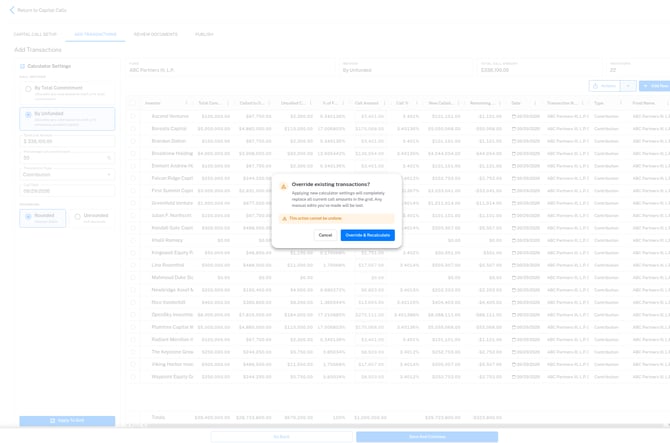
If the grid already has transactions, clicking Apply To Grid again shows an Override existing transactions? warning. Clicking Override & Recalculate replaces all current call amounts, including any manual edits, and cannot be undone. Click Cancel to keep the grid as it is.
Step-by-Step: Saving Transactions
- When the amounts look correct, click Save And Continue.
- Ark saves every row with a call amount greater than $0. Investors with a $0 call amount are not saved and will not receive a notice.
- You are taken to the Review Documents tab, where one notice is generated per saved transaction.
Note: If you leave and reopen the capital call, the saved transactions reload in the grid and the Calculator Settings panel is filled in to match them.
Best Practices
- Set the calculator first, then make manual edits. Applying the calculator again replaces your edits.
- Use Unrounded when the call total must match an exact figure to the cent.
- Check the Totals row and the Total Call Amount card before saving.
- Review Remaining Uncalled for each investor. A negative value means the call is more than that investor’s remaining commitment.
FAQ
Q: What’s the difference between By Total Commitment and By Unfunded?
By Total Commitment splits the call based on each investor’s share of total fund commitments. By Unfunded splits it based on each investor’s share of the remaining uncalled capital.
Q: Why are some investors missing after I saved?
Rows with a $0 call amount aren’t saved, so no notice is created for them.
Q: Can I still upload transactions from a CSV?
Yes. Use Upload From Template as described in the Initiating, Reviewing, and Publishing guide. If the grid already has transactions, you’ll be asked to confirm before they are replaced.
Next Steps
- Continue to Reviewing and Publishing the Mailing.
- Review the Preparing Capital Calls & Distributions: Mailings Templates & Folder Setup guide for template formatting.
- For questions or support, reach out to support@arkpes.com.