
Last verified: Nov 11, 2026
Ark MCP lets back office teams and GPs ask questions about their Ark portfolio data in natural language from Claude, ChatGPT and other AI tools that support MCP. Answers come straight from Ark, with read-only access governed by each user's existing Ark permissions.
Jump to Section
- What You'll Learn
- Who Can Use This Feature
- Before You Begin
- Step-by-Step: Turn On Ark MCP (Ark Client Admin users only)
- What Ark MCP Can Access
- Step-by-Step: Connect Ark MCP in Claude
- Step-by-Step: Connect Ark MCP in ChatGPT
- Signing In to Ark
- Other AI Tools
- Example Prompts
- Tips & Best Practices
- FAQ
- Next Steps
What You'll Learn
- What Ark MCP can access in Ark
- How to turn on Ark MCP and connect it in Claude, ChatGPT or another supported AI tool
- Prompts to try, and tips for getting accurate answers
Who Can Use This Feature
Ark Client Admin
- Access to all funds within the client
- Can turn Ark MCP on or off for the client in Feature Config
Basic Admin
- Access limited to funds on their Fund Management Team
Fund User Admin
- Read-only access to funds on their Fund Management Team
Note: Ark MCP uses existing Ark permissions and doesn’t grant any new access. Users only see data for the clients and funds they can already access in Ark.
- Client missing? Ark Client Admins can check that Ark MCP is turned on for that client in Client Details > Feature Config. Other users can ask an Ark Client Admin at their firm or reach out to support@arkpes.com.
Before You Begin
- Ark MCP must be turned on for each client in Client Details > Feature Config, or the AI tool will say the client isn't found. Only Ark Client Admin users can do this.
- Investments must already exist within Portfolio Investments.
- A supported AI tool, approved by your team.
Step-by-Step: Turn On Ark MCP (Ark Client Admin users only)
- Go to Client Details > Feature Config.
- Turn on the MCP toggle.
- Review the MCP Terms & Conditions and click Accept.
- Click Save.
What Ark MCP Can Access
| Data | Status |
|---|---|
| Portfolio Investments: funds, assets, securities and the Schedule of Investments | Available |
| arkGL and GL reports: journal entries, trial balance, income statement, balance sheet | Coming soon |
| LP and contact data: investors, capital calls, distributions, capital accounts, contacts | Coming soon |
Note: Ark MCP is read-only. It can't create, edit or delete anything in Ark.
Step-by-Step: Connect Ark MCP in Claude
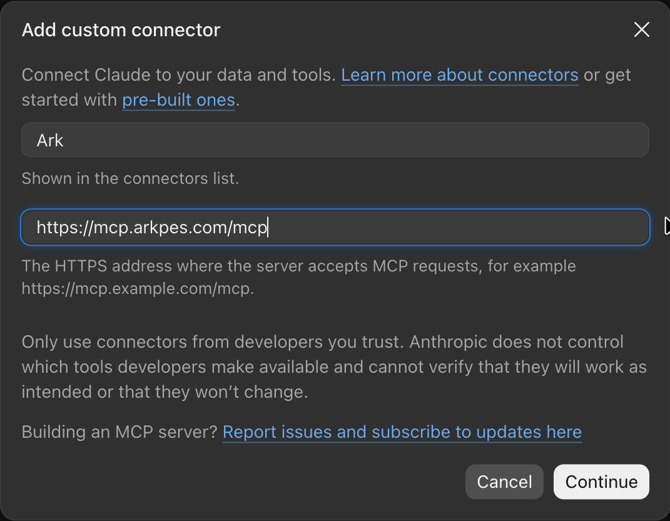
Ark MCP server URL: https://mcp.arkpes.com/mcp
Individual (Personal plans)
- Settings > Connectors > Add > Add custom connector.

- Name it Ark, paste the URL, click Continue, keep the defaults and click Add.
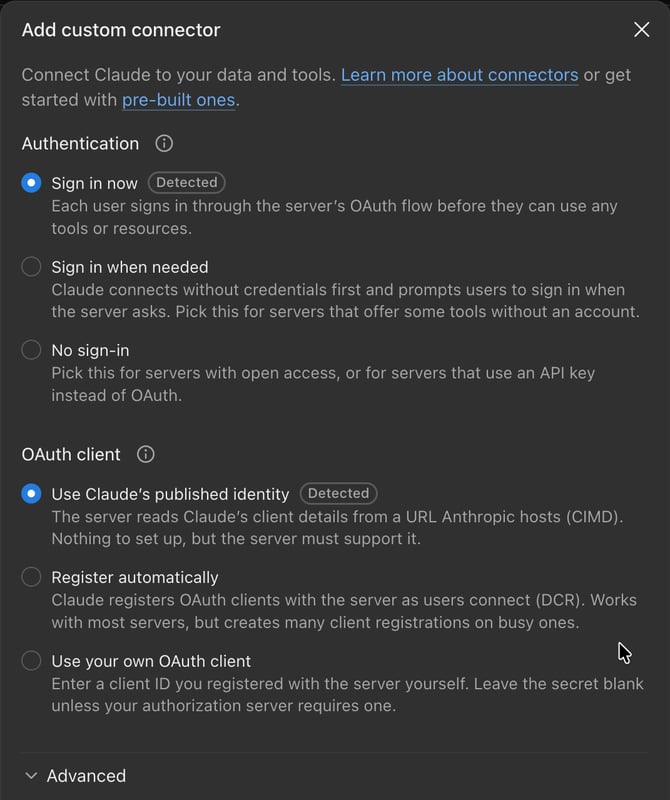
- Click Connect and sign in.
Members (Team or Enterprise)
Once your Owner has added Ark:
- Go to Settings > Connectors.
- Click Connect next to Ark and sign in.
Not listed? Ask your Owner to add it.
Owners (Team or Enterprise)
- Follow the Individual steps first.
- Organization settings > Connectors > Add > Custom > Web.
- Name it Ark, paste the URL and click Continue.
Each person still connects with their own Ark account.
Claude help: custom connectors
Step-by-Step: Connect Ark MCP in ChatGPT
Ark MCP server URL: https://mcp.arkpes.com/mcp
Individual (Personal plans)
- Open Plugins in the left menu, then Add > Add custom MCP server.
- Name it Ark, paste the URL, keep OAuth, check I understand and click Create as a plugin.
- Click Connect Ark (or Continue to Ark) and sign in.
- In a new chat, type @ and select Ark.
Members (Business)
Once your admin has published Ark:
- Open Plugins in the left menu, then your company's tab.
- Click + next to Ark (or open Ark and click Install plugin), then sign in.
- In a new chat, type @ and select Ark.
Workspace admins (Business)
- Follow the Individual steps first.
- Personal tab > ⋯ > Share > Visible in directory > Save.
- Workspace Settings > Plugins > Ark > Configure. Review the tools, check I understand and click Publish.
Each person still connects with their own Ark account.
ChatGPT help: custom MCP servers
Signing In to Ark
Enter your email and password, then complete MFA the way you normally do for Ark. On the Authorize App screen (if shown), check that it names Claude or ChatGPT and click Accept.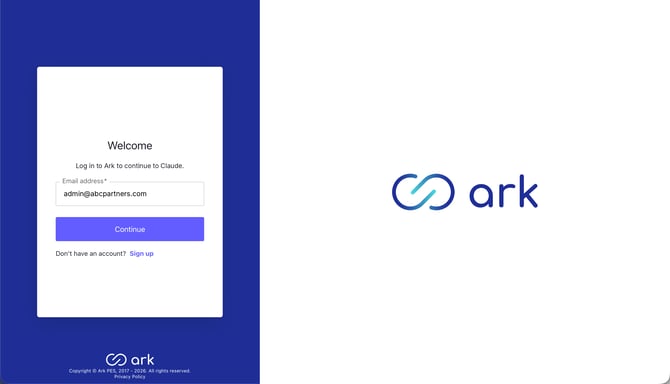
Note: Menu names in AI tools can change. If a step looks different, check the tool's help docs, linked in each section.
Other AI Tools
Ark MCP also works with the tools below. Each one uses the server URL https://mcp.arkpes.com/mcp and the same Ark sign-in as above. On the Authorize App screen, check that it names the tool being connected. Menus change often, so each tool's own setup docs have the latest steps.
- Claude Code: run
claude mcp add --transport http ark https://mcp.arkpes.com/mcp, then run/mcpto sign in. Claude Code docs - Codex (CLI and IDE extension): run
codex mcp add ark --url https://mcp.arkpes.com/mcp, thencodex mcp login ark. The CLI and IDE extension share this setup. Codex docs - VS Code (GitHub Copilot): add an HTTP MCP server with the Ark URL, then click Authenticate. VS Code docs
- GitHub Copilot CLI: run
copilot mcp add --transport http ark https://mcp.arkpes.com/mcp. A browser opens to the Ark sign-in page. GitHub docs
Example Prompts
Replace the names in brackets with real client, fund and company names.
- Board meeting tear sheet: “I have a board meeting next week. Can you make a tear sheet for [company] in [client name] as of [date]?”
- Quarterly LP report: “I’m preparing our quarterly LP report. Build the [date] Schedule of Investments for [fund] in [client name], grouped by industry.”
- Quarter-end valuation review: “For our quarter-end valuation review, which positions in [fund] were below cost at both [date] and [date]? Rank them by unrealized loss.”
- Fundraising deck: “We’re updating our fundraising deck. For [client name], what is each deal lead’s gross IRR at each year-end since [year]?”
Tips & Best Practices
- Name the client, and the fund when possible. For data on a specific fund, include both the client and fund name to get results faster. Naming just the client works too.
- Include an as-of date so results match the right period.
- Check key figures. AI tools can make mistakes, so confirm important numbers in Ark before sharing them.
FAQ
Q: Why can’t the AI tool find my client?
A: Try including the client name. Users only see clients their Ark permissions allow, and an Ark Client Admin must turn on Ark MCP for that client in Client Details > Feature Config. Still missing? Reach out to support@arkpes.com.
Q: Where does my data go?
A: Data returned to an AI tool is governed by that tool's data and retention settings. Use AI tools approved by your team.
Next Steps
If there are any questions, reach out to us at support@arkpes.com - we're here to help!